

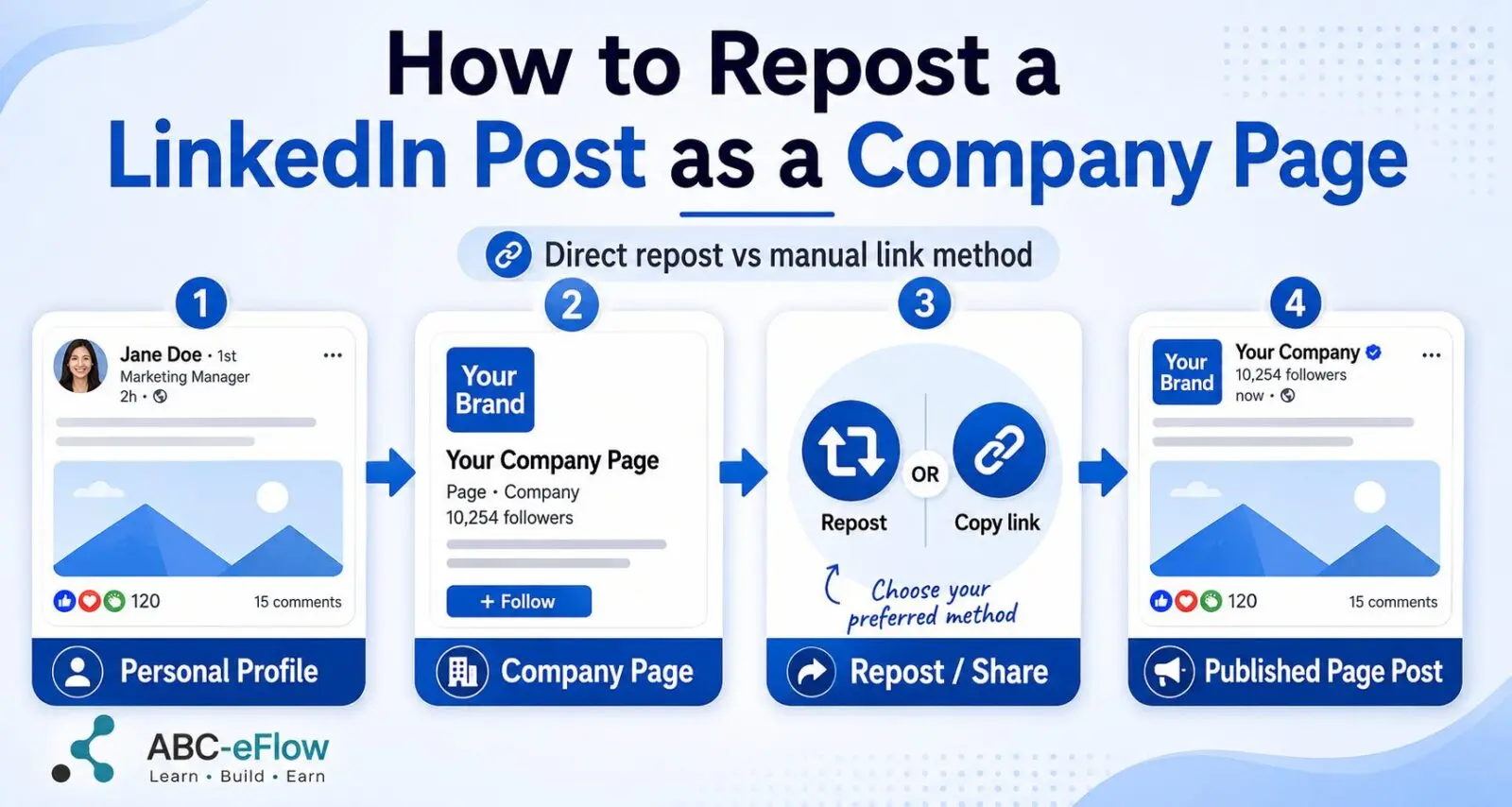
To repost a LinkedIn post as a Company Page, open the Page in super admin view, select View as member, locate the post, and click Repost. Before publishing, use the posting settings to confirm that the repost will appear under the Company Page rather than your personal profile.
LinkedIn Pages do not have separate usernames and passwords. You sign in through your personal LinkedIn profile, then manage any Company Pages for which that profile has admin access.
The confusing part is not usually finding the Repost button. It is making sure LinkedIn publishes the repost as the Company Page instead of quietly dropping it onto your personal feed.
Quick answer: Use LinkedIn’s native repost method first. If the Company Page identity is unavailable, copy the original post link and create a new post from the Page admin view.
Before You Start
You need Page admin access through your personal LinkedIn profile. For LinkedIn’s documented native repost-as-Page workflow, you need super admin access.
- Super admins have access to the full Page management system. LinkedIn’s current native repost instructions are written specifically for this role.
- Content admins can create and manage Page posts, but the documented native repost-as-Page workflow is not written for that role. If the Company Page identity or repost controls are unavailable, use the manual-link method below.
- Analysts cannot publish Page content.
The original post must also be available to the audience you are trying to reach. A private, restricted, deleted, or otherwise unavailable post may not provide a usable repost option.
Method 1: Repost Directly as the Company Page
This is LinkedIn’s native method and the best first choice when the correct Page identity is available.
Desktop steps
- Sign in with the personal LinkedIn profile that has super admin access to the Company Page.
- Open the Company Page in super admin view.
- Select View as member.
- Locate the public post you want to share.
- Click the Repost icon.
- Choose Repost to share it without added text, or Repost with your thoughts to add company commentary.
- If you add commentary, open the dropdown beside your name in the post window.
- Under Posting as, select the Company Page.
- Review the audience and comment settings.
- Confirm that the Page name and logo—not your personal profile—appear as the posting identity.
- Click Post.
The identity check is the important part. If the window still shows your personal name and profile image, the repost is heading toward your personal feed.
Mobile steps
- Open the Company Page in super admin view.
- Tap More in the upper-right corner.
- Select View as a member.
- Open the Page’s posts and locate the post you want to repost.
- Tap Repost.
- Choose a direct repost or a repost with your thoughts.
- Open the identity dropdown and select the Company Page under Posting as.
- Confirm the settings and tap Post.

Method 2: Copy the Link and Create a Page Post
Use the manual-link method when LinkedIn does not display the Company Page as a posting identity, the native repost control is missing, or you want more control over the company caption.
- Open the LinkedIn post you want to share.
- Select the three-dot menu near the upper-right corner of the post.
- Choose Copy link to post.
- Open your Company Page in admin view.
- Go to Page posts or start a new post using the Page’s Create control.
- Paste the copied LinkedIn link into the post.
- Wait for LinkedIn to generate the preview.
- Add a short explanation of why the Company Page is sharing it.
- Confirm that the post will publish under the Company Page.
- Click Post.
This creates a new Company Page post linking to the original rather than a native repost. It is less tidy, but it is often the most predictable fallback when LinkedIn’s identity controls refuse to cooperate.
Direct Repost or Manual Link?
| Situation | Best choice |
|---|---|
| The Page appears under Posting as | Native repost |
| You want to preserve the original post and engagement path | Native repost |
| The Page identity is missing | Manual-link post |
| You are a content admin without the documented super-admin repost path | Manual-link post |
| You need more control over the company caption | Manual-link post |
| The original post is private or restricted | Neither method may work |
Why the Company Page Option May Be Missing
- You opened LinkedIn through a profile that does not have Page admin access.
- You are a content admin rather than a super admin and do not see the documented native repost path.
- You have not switched from admin view to View as member.
- The original post is not public or cannot be reposted.
- The posting window is still set to your personal profile.
- LinkedIn is showing a different interface on mobile or desktop.
- The post type does not support the normal repost workflow.
- LinkedIn is testing or changing the interface again, because apparently the buttons were getting too comfortable.
Troubleshooting Checklist
| Problem | What to check |
|---|---|
| I only see my personal profile | Open the Page through the correct admin profile and check Posting as |
| I cannot find the reposted post | Confirm whether it published to your personal feed instead |
| The Repost button is missing | Check post visibility, post type, and whether you selected View as member |
| I have admin access but cannot repost | Confirm your admin role; use the manual-link method if needed |
| The Page link preview is blank | Remove the URL, paste it again, and wait for the preview |
| The Page option disappeared | Refresh LinkedIn, reopen the Page, or use the manual-link method |
| The original post is restricted | Ask the author for a public link or create separate Page content |
What to Write Above the Repost
A Company Page repost usually needs one or two sentences explaining why the business is sharing it.
- Identify the specific point worth reading.
- Add a brief company perspective.
- Connect the post to a customer or industry issue.
- Credit the original author when appropriate.
- Avoid rewriting the entire original post above the original post.
Useful explanation from [Name]. The section on [specific issue] is particularly relevant for organizations managing LinkedIn Pages across several admins.
Sharing this because it addresses a common problem we see when businesses move from personal posting to a managed Company Page.
Keep the commentary useful and short. This is a repost, not a hostile takeover.
Common Mistakes
Publishing as yourself
Always check the Page name and logo before publishing. LinkedIn is perfectly willing to let you discover the mistake after the post goes live.
Skipping View as member
The current native repost route begins in Page admin view and then moves through View as member. Looking for the normal repost control only inside the admin dashboard can send you in circles.
Assuming every post can be reposted
Restricted visibility, unsupported post types, deleted content, and audience controls can prevent a clean repost.
Posting a naked link
When using the manual method, wait for the preview and add enough context to explain why the Page is sharing the post.
The Bottom Line
Start with LinkedIn’s native repost process:
- Open the Company Page in super admin view.
- Select View as member.
- Locate the post and click Repost.
- Choose whether to add company commentary.
- Set Posting as to the Company Page.
- Confirm the Page identity and publish.
If the Company Page identity does not appear, copy the original post link and create a new post through the Page admin view.
The first method is cleaner. The second method is less elegant but harder for LinkedIn to hide behind a mystery dropdown.
For LinkedIn’s current platform instructions, see its official guides for reposting a LinkedIn Page post and Page admin roles and permissions.
For the broader role of LinkedIn inside a small business setup, see Side Gig Marketing. For the rest of the practical software and services behind a small operation, see Tools for Running Side Gigs. If the problem is really an admin role, publishing identity, missing control, or platform-interface failure, continue through Fix.
Last reviewed: August 23, 2026 — Q5 current-workflow verification